GTA 6 on PS5: turn on Spoiler Warnings before launch
Published on · Updated on
One PS5 setting hides screenshots, clips and friends' activity on the home screen; here's how to enable it before GTA 6 and what it does not cover.

With less than a day to go before Grand Theft Auto VI arrives on PlayStation 5 and Xbox Series X|S on November 19, 2026, there is one console setting that can save your first trip to Leonida: Spoiler Warnings. The feature lives under Settings > Saved Data and Game/App Settings > Spoiler Warnings, takes less than a minute to enable and hides screenshots, clips and content shared by other players from the home screen whenever they might reveal story moments. It is a built-in system option, requires no subscription, and is worth checking before you launch the game for the first time — especially for a release the size of GTA 6.
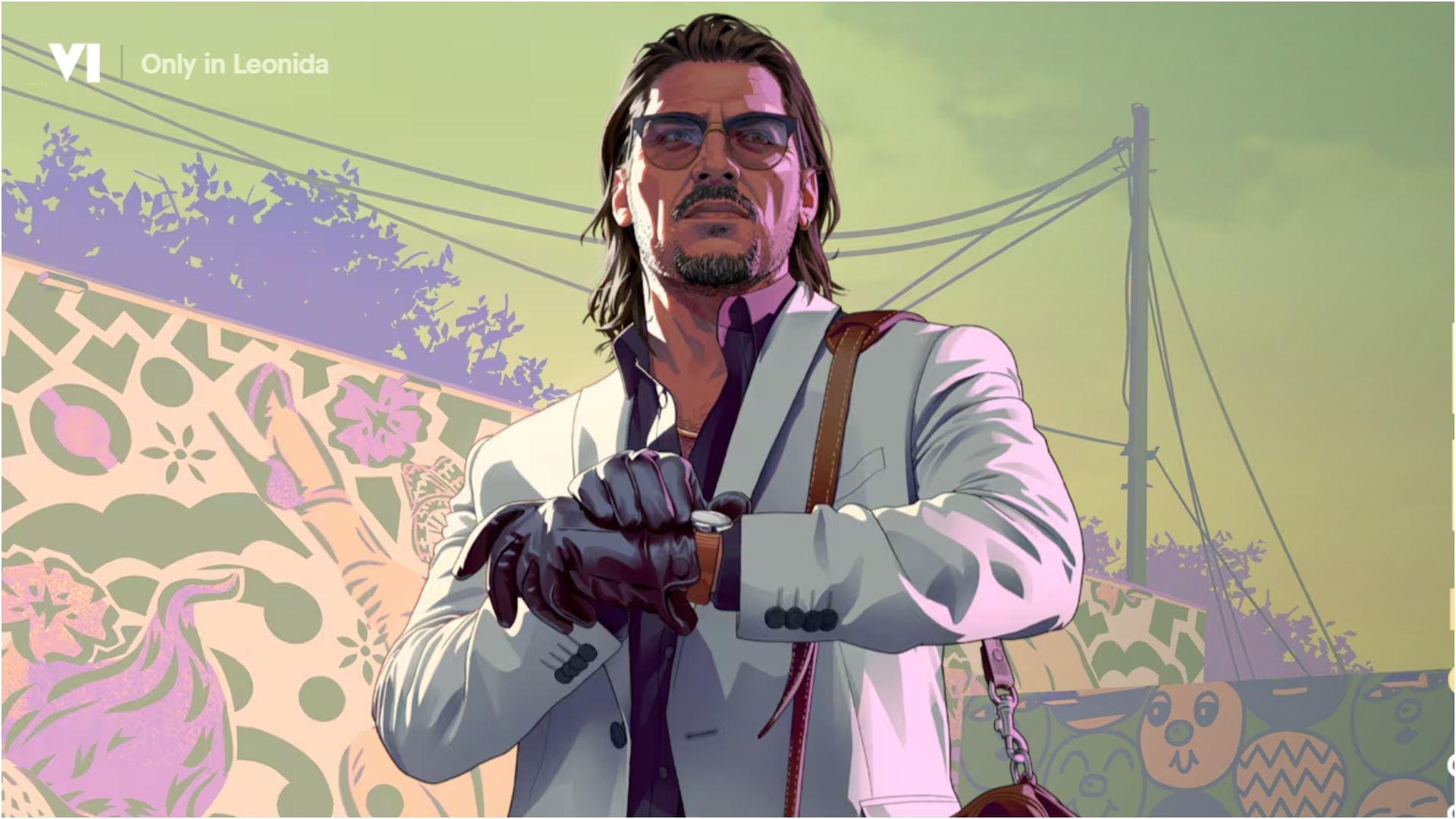
Why the PS5 home screen became a spoiler showcase
Since the console launched in 2020, the PlayStation 5 interface has been more than a game menu. The home screen blends updates, news, activity cards and user-generated content — screenshots and clips that friends share after playing. With a brand-new release, that is exactly where the most dangerous images show up: a final boss, a story twist, a character who should not be there yet.
For anyone planning to play GTA 6 on its first weekend, the risk is real. One friend finishing a mission early and posting a clip is enough to ruin the surprise. The console surfaces that material even if you never go looking for it. That is the behaviour Spoiler Warnings tries to contain: instead of showing the content, the system places a protective layer over images and videos that could reveal something the player has not seen yet.
"Spoilers are the worst if you're not the first to play a game or see a trailer. So we're going to show you how to set up spoiler warnings on PS5, so that news isn't ruined by user-generated content on the console's home screen."
Step by step: how to turn on Spoiler Warnings on PS5
The path is short and identical on every model, from the standard PS5 to the PS5 Pro. The change applies immediately — no restart, no need to open the game. Here is how:
- Open Settings. From the PS5 home screen, select the gear icon in the top-right corner of the dashboard.
- Go to "Saved Data and Game/App Settings". The entry sits near the bottom of the system settings list.
- Choose "Spoiler Warnings". It appears in the left-hand column inside that section.
- Enable "Warn About Game Spoilers". With the toggle on, the console starts hiding content flagged as a spoiler and offers two strictness levels.
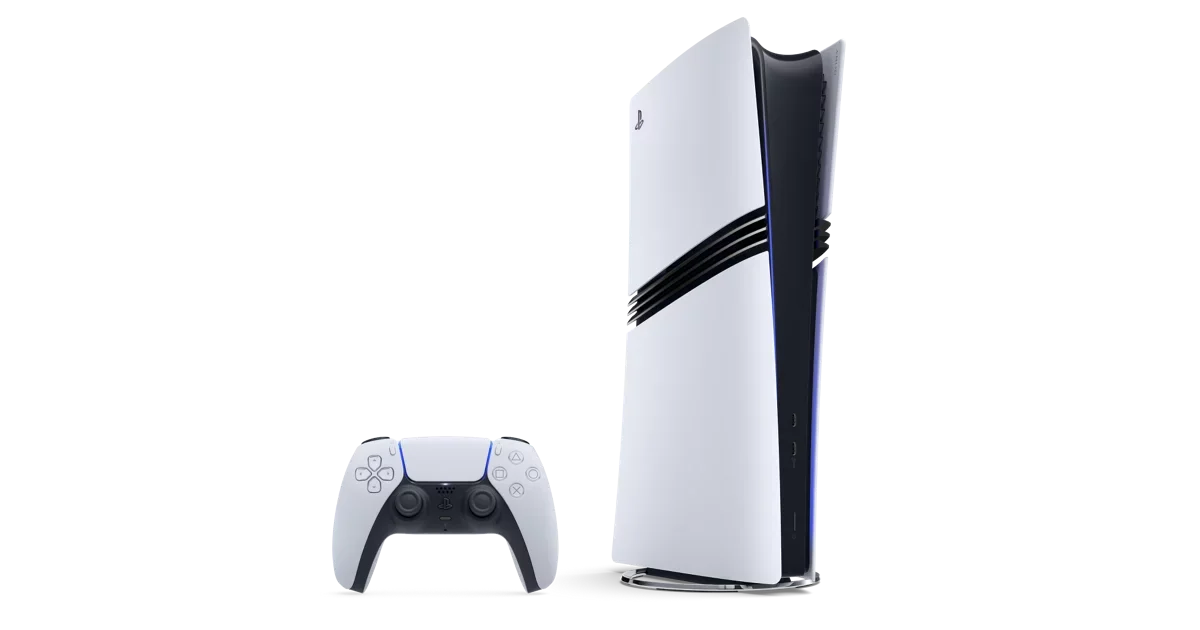
Once the toggle is on, the console remembers your choice for the profile. You do not have to repeat the process every session. There is no cost either: the feature ships with the system software and is available on every account, with or without PlayStation Plus.
Which of the two options should you pick?
With warnings enabled, the PS5 offers two protection levels. The difference lies in who decides what counts as a spoiler: the game's developer or the system itself, based on your progress. According to Digital Trends, the console ships with the more conservative mode enabled — the one that only hides what the studio flagged.
| Option | What it does | Who it suits |
|---|---|---|
| Only Spoilers Identified by Game Developers | Hides only content the studio explicitly tagged as a spoiler. This is the factory default. | Players who still want to browse clips and screenshots without losing the overall picture. |
| Everything You Haven't Seen Yet | Uses your progress as a reference and tries to hide any content from sections you have not reached. | Players starting GTA 6 from minute one who want zero hints about the campaign. |
"By default, it's set to Only Spoilers Identified by Game Developers, which we recommend changing to Everything You Haven't Seen Yet. It's not clear how this feature will shape up over the PS5's lifecycle, but for now, that setting works best."
For the GTA 6 launch, the practical advice is simple: enable the toggle and pick "Everything You Haven't Seen Yet". The mode is stricter, but it is the only one that tries to block material that was never officially tagged — including the screenshot sent by a friend who is already further into the story.
What the feature covers — and what it does not
It helps to set expectations. Spoiler Warnings is not a universal internet blocker; it is a filter inside the PlayStation ecosystem. Understanding its limits avoids a false sense of safety:
- It applies to PS5 games. PS4 titles running through backward compatibility fall outside the protection, according to outlets such as WIRED and SlashGear.
- The milder mode depends on tagging. Under "Only Spoilers Identified by Game Developers", the filter only works if the studio labelled the content. Without a tag, the material shows up as usual.
- It acts on the console interface. Protection applies to cards, screenshots and clips shown in the system and in connected services such as the store, which may display a "Spoiler" warning instead of the image. It does not stop someone from seeing the same content in a browser or on another person's phone.
- It does not replace discipline. No filter covers everything. Anyone who truly wants to arrive fresh on the 19th needs to combine the console setting with care on social media.
Beyond the console: extra layers of protection
Browser extensions
On a computer, extensions block content flagged with keywords or entire channels. BGR lists three free Chrome options: SpoilerProtection, rated 3.9 on the Chrome Web Store, which hides page sections containing sensitive terms; YTBlock, which blocks videos and recommendations on YouTube; and ElementHider, a more general tool for hiding content blocks on any site. Users report equivalent alternatives for Firefox and other browsers.
YouTube, social media and messaging groups
The recommendation algorithm is the biggest enemy of anyone trying to dodge spoilers. A single GTA 6 video is often enough for the platform to start suggesting analyses, alternate endings and reactions with campaign footage in the thumbnail. Three habits reduce the problem:
- Do not open comments. Comment sections under videos and posts are the most common place for an accidental reveal.
- Use "don't recommend this channel" whenever a spoiler video appears. The effect on the feed is immediate.
- Mute keywords. On X/Twitter, Bluesky and Instagram you can hide terms such as "GTA 6 ending", "GTA VI final" and variations. In WhatsApp and Telegram groups, consider leaving or muting until you finish the campaign.
Why the worry around GTA 6 is so high
Grand Theft Auto VI is the most anticipated release of the decade and arrives after years of waiting and delays. Rockstar Games has treated the title as the biggest project in its history, with a map centred on Leonida and two protagonists, Lucia and Jason. It is only natural that the community wants to preserve every detail until first contact.
There is a technical angle too. Rockstar has indicated that GTA VI should look its best on the PS5 Pro, thanks to ray tracing features explored on the more powerful console — which increases the number of players who want to start the campaign with no prior information. If you are still deciding where to play, check our guide to the PS5 Pro performance mode and the everything you need to know before launch.
It is also worth remembering that the PlayStation 5 has received other relevant software changes recently, such as the QSSR AI upscaling — which we covered in detail in our GTA 6 hub. Tuning the console before the 19th is part of the preparation, alongside freeing up SSD space for the download.
Final checklist before November 19
If you want to walk into Leonida knowing nothing, the sequence below takes less than ten minutes and covers the essentials:
- Enable Spoiler Warnings on the PS5 and choose the strictest option.
- Install a spoiler-blocking extension in the browser you use every day.
- Mute keywords on social media and leave groups that tend to leak content.
- Avoid comments and reaction pages during the first few days.
- If possible, start the campaign on launch weekend, before endings circulate widely.
Spoiler Warnings is not a magic solution, but it is the most direct tool a PS5 player has at hand — and it is a few taps away. For a release that mobilises the entire industry, one minute of configuration can be worth hours of preserved surprise. If you want to follow what comes after the 19th, our guide to how long it takes to reach 100% and earn the Platinum is already live, and the rest of our coverage sits in the GTA section of O Santuário Geek. The official sources for the feature and the game are on PlayStation Support and the official Grand Theft Auto VI website.